
Deepgram speech provider
A Deepgram speech provider lets Live Hub use your Deepgram account for speech-to-text (STT), text-to-speech (TTS), or both.
Deepgram's advanced configuration parameters can be set at either of two levels:
- Provider level: Enter the parameters in the 'Provider configuration' field. A parameter set on the provider applies to every bot connection that uses the provider.
- Bot connection level: Enter the parameters on the bot connection's Advanced tab. A parameter set on a bot connection applies to that connection only.
If the same parameter is set at both levels, the bot connection value takes precedence.
Add a Deepgram speech provider
To add a Deepgram speech provider:
-
From the 'Deepgram region' drop-down list, select the region.
-
In the 'Authentication key' field, enter the API key from your Deepgram account.
-
Optional: Under Advanced, in the 'Provider configuration' field, enter the advanced configuration parameters that apply to every bot connection using this provider, or point text-to-speech at a private deployment with
ttsUrl. See Configure advanced parameters at the provider level.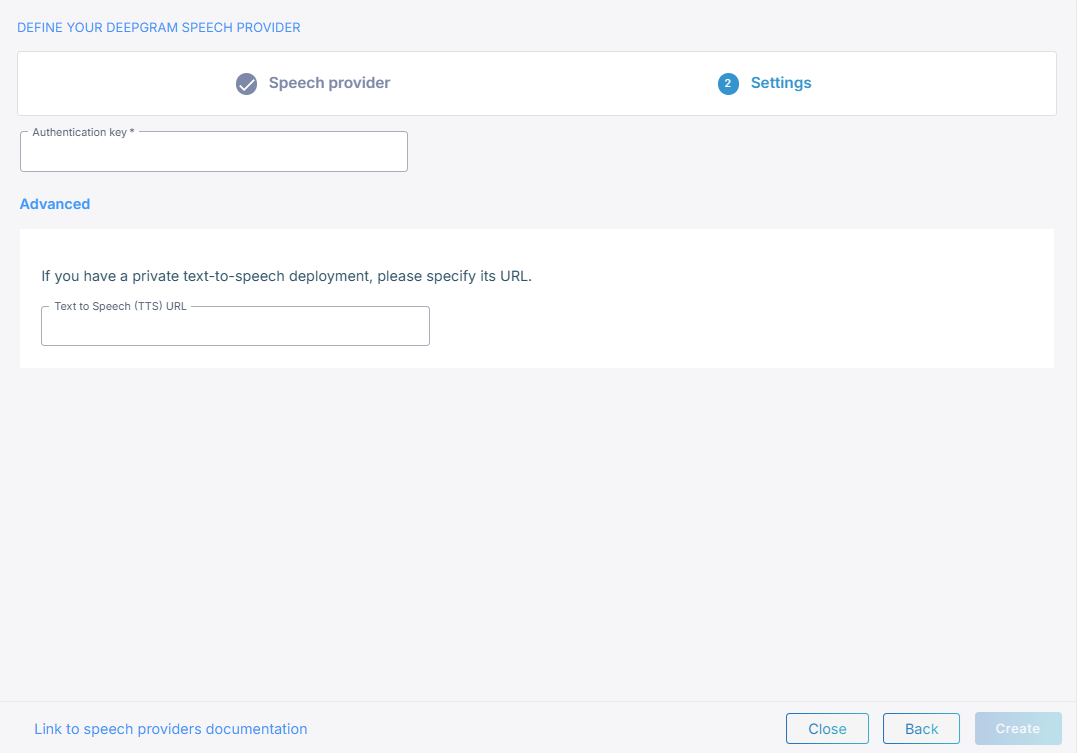
-
Click Create.
Configure advanced parameters at the provider level
The JSON you enter in 'Provider configuration' is merged into every request Live Hub sends to Deepgram, so it applies to every bot connection using this provider.
Configure advanced parameters at the bot connection level
Deepgram's advanced configuration parameters go under sttPassthruConfig and
ttsPassthruConfig in the JSON editor on the bot connection's Advanced tab, and
Live Hub merges them into the request it sends to Deepgram. See
Manage bot connections.
Speech-to-text
The full set of speech-to-text parameters is the query parameters of Deepgram's streaming speech-to-text API.
{
    "sttPassthruConfig": {
        "numerals": true
    }
}
On the streaming API, these have no effect: language, model, callback,
callback_method, keyterm, mip_opt_out, and redact.
For keyword boosting, use the sttSpeechContexts bot parameter rather than
sttPassthruConfig.
Flux models use Deepgram's Flux API instead, which takes its own set of query parameters. None of the exclusions above apply to it. For the parameters that end a Flux turn, see Turn-taking.
Text-to-speech
The full set of text-to-speech parameters is the query parameters of Deepgram's text-to-speech API.
{
    "ttsPassthruConfig": {
        "tag": "example-tag"
    }
}
Turn-taking
Live Hub finds the end of a turn from the punctuation in Deepgram's recognitions. Deepgram returns final recognitions while the caller is still speaking, rather than holding them until the end of an utterance, and punctuates what it returns. A recognition ending in a period, a question mark, or an exclamation mark is treated as a finished thought, and one that does not end in any of them is given longer, in case the caller is still talking.
Two fields on the bot connection's Settings tab, under Speech-to-Text (STT) Settings, set how long Live Hub waits in each case. Each one has a bot parameter behind it, which you can set on the Advanced tab instead:
| Field | Bot parameter |
|---|---|
| 'End-of-turn timeout for recognitions without terminating punctuation (ms)' | continuousASRTimeoutInMS
|
| 'End-of-turn timeout for recognitions with terminating punctuation (ms)' | continuousASRPunctuationTimeoutMS
|
For their defaults and ranges, see Deepgram speech-to-text.
Both are worth tuning against your own callers. The wait after punctuation can be short, because the model has already signalled a complete thought, but too short a value cuts people off when they pause between sentences. The wait without punctuation is the safety net for speech the model did not resolve into a sentence, and too short a value ends the turn while the caller is still thinking.
Live Hub sets two further parameters to make this work. Override either on the Advanced tab if you need to:
| Parameter | Value | What it does |
|---|---|---|
continuousASR
|
true
|
Collects the recognitions into one turn instead of sending each of them to the bot. |
endpointingMs
|
10
|
Closes each recognition almost at once. It governs the individual recognitions, not the end of the turn. |
Flux models
Flux decides for itself when a turn has ended and tells Live Hub, so none of the fields
and parameters above apply to it. Its own parameters go under sttPassthruConfig on the
Advanced tab:
| Parameter | What it does |
|---|---|
eot_threshold
|
Sets how confident Flux must be that the turn is over before it says so, from 0.5 to 0.9. Default 0.7. Raise it to let callers pause for longer, lower it to end turns sooner. |
eot_timeout_ms
|
Sets how long Flux waits before it ends the turn whatever its confidence. Default 5000 ms. |
eager_eot_threshold
|
Signals a likely end of turn before Flux is fully confident, from 0.3 to 0.9. It shortens the pause before the bot replies, at the cost of 50% to 70% more requests to the bot. |
{
    "sttPassthruConfig": {
        "eot_threshold": 0.8
    }
}
Training data
Selecting Deepgram adds a toggle to the bot connection's Settings tab: 'Allow Deepgram to use the audio data to improve its models'. Turning it on lets Deepgram use the call audio for model development, and Deepgram handles that data under its usage terms. Turning it off raises your usage costs.
Language, model, and voice
You select the language, the model, and the voice per bot connection, on its Settings tab, not on the provider. See Manage bot connections.
If the speech-to-text model supports it, a 'Multilingual' check box appears on the same tab. Selecting it changes the 'Language' field to 'Main language'.